




Instructions: Connecting to the Tuya or Smart Life app
Connecting to the Tuya or Smart Life App
First, download the Tuya or Smart Life app to your smartphone and create an account there. We recommend using the Tuya app.
Important: Your Wi-Fi must be set to a 2.4 GHz frequency. Most Wi-Fi routers are set to 2.4 GHz by default.
Tuya app: iOS / Play Store
Smart Life app: iOS / Play Store
After mounting the light, you can switch it on using the light switch or foot switch and control it with the included remote control.
Make sure that your smartphone is connected to your Wi-Fi.
If you want to control the light via the app in addition to the remote control and control it with Amazon Alexa or Google Home, you can connect the light by following these steps:
1) Press the K- and K+ buttons on the remote control simultaneously and hold both for 6 seconds.
2) The light will now flash briefly, confirming that it is in pairing mode.

When you open your Tuya or Smart Life app, a notification should automatically appear indicating that a new device is available for connection.
Confirm that you want to add the light and wait until setup is complete in the app.

If no notification appears when you open the app, add a new device using the + symbol in the top right of the app.

Select the Lighting category on the left, then select Light Source (BLE+WiFi).
You can skip the instructions for resetting the device in the app, since you have already put the light into pairing mode using the remote control.

The app will now search for the light and find it within the countdown timer.
Wait until the setup wizard has finished and, if necessary, give the light a suitable name.

Connecting to Amazon Alexa / Google Home
In the Tuya app, navigate to your profile using the icon in the bottom right. Select Third-Party Voice Services there.

Link your Alexa or Google Home app to the Tuya app there. All devices will then be synchronized between the apps.
Our Pendant lights



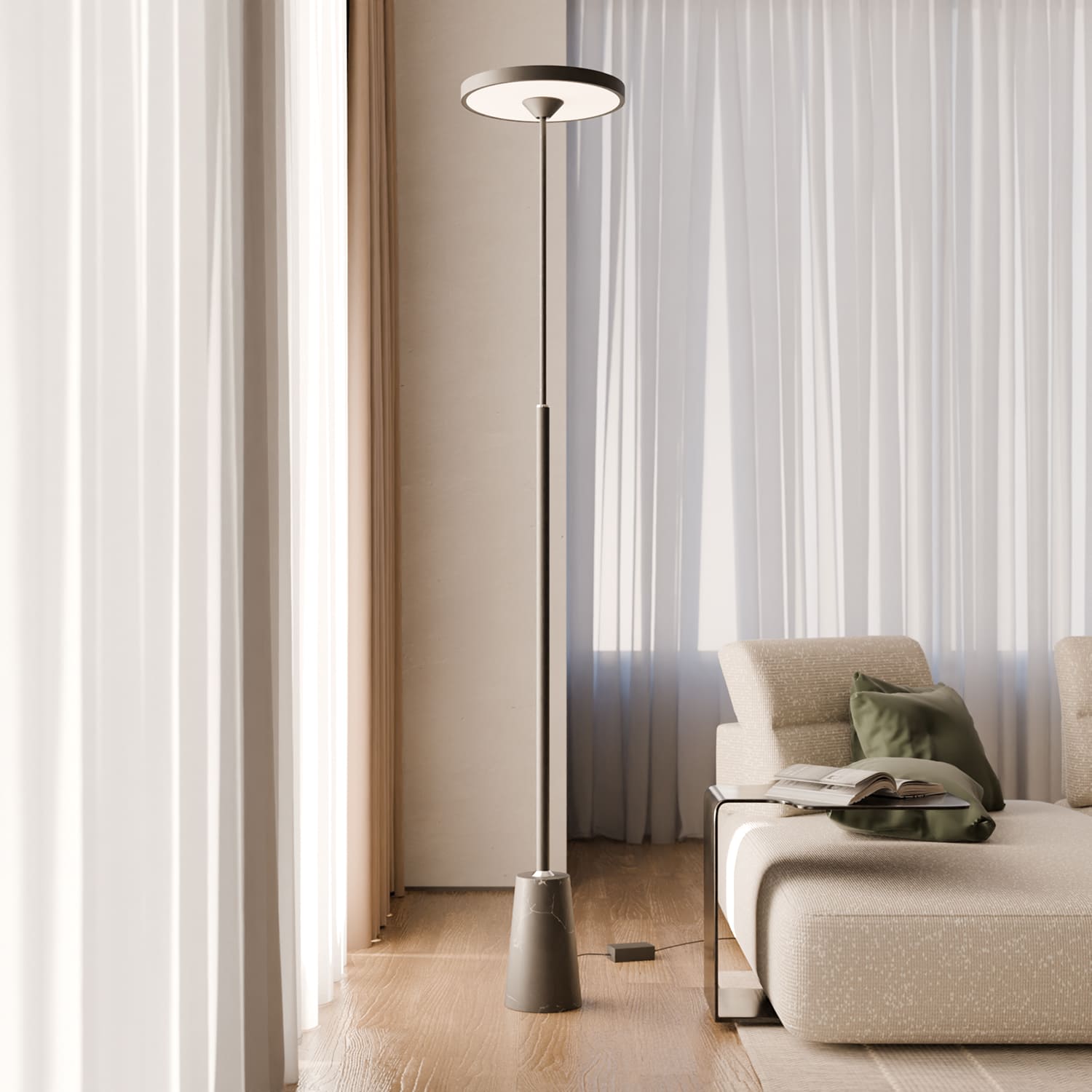
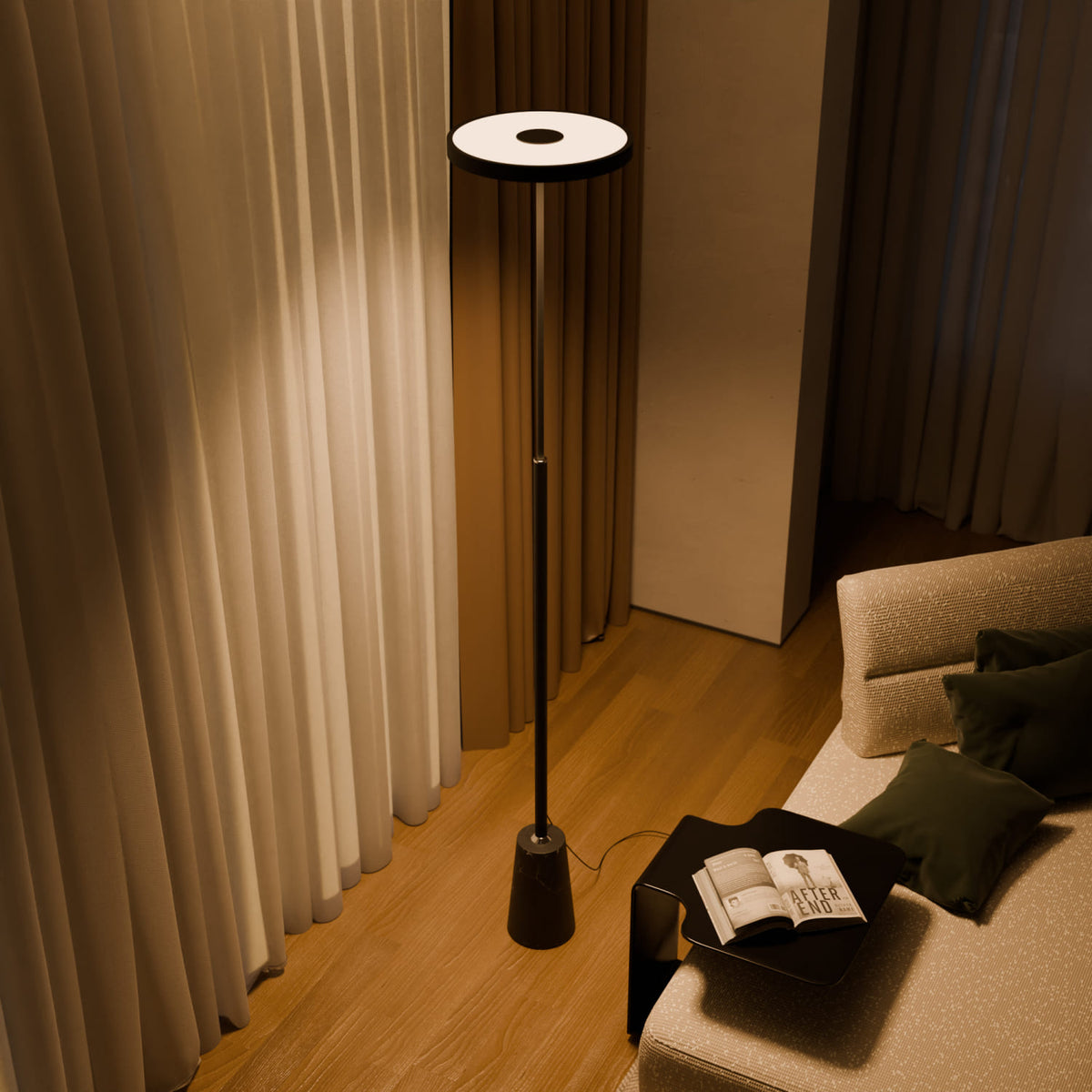
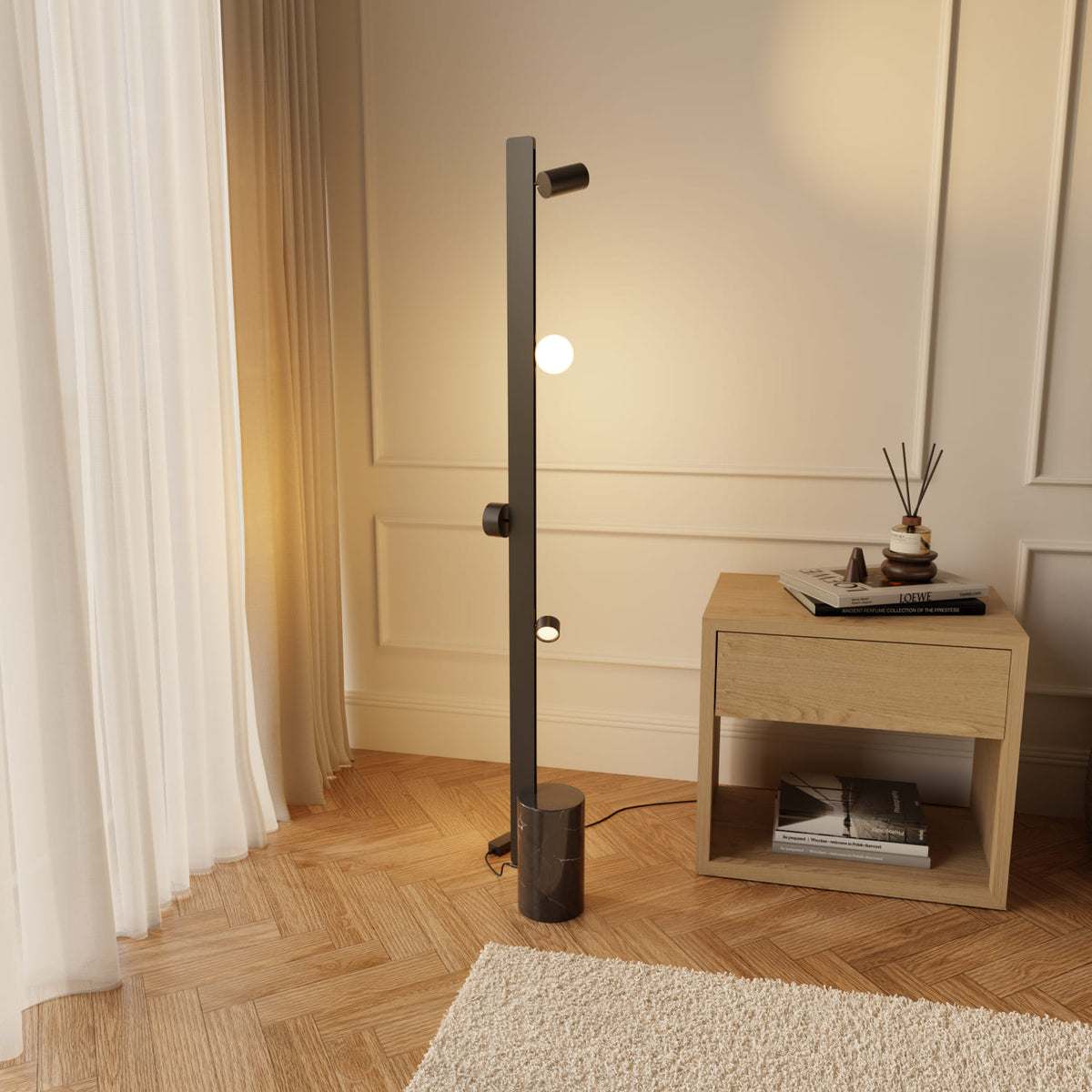
Our Floor lamps
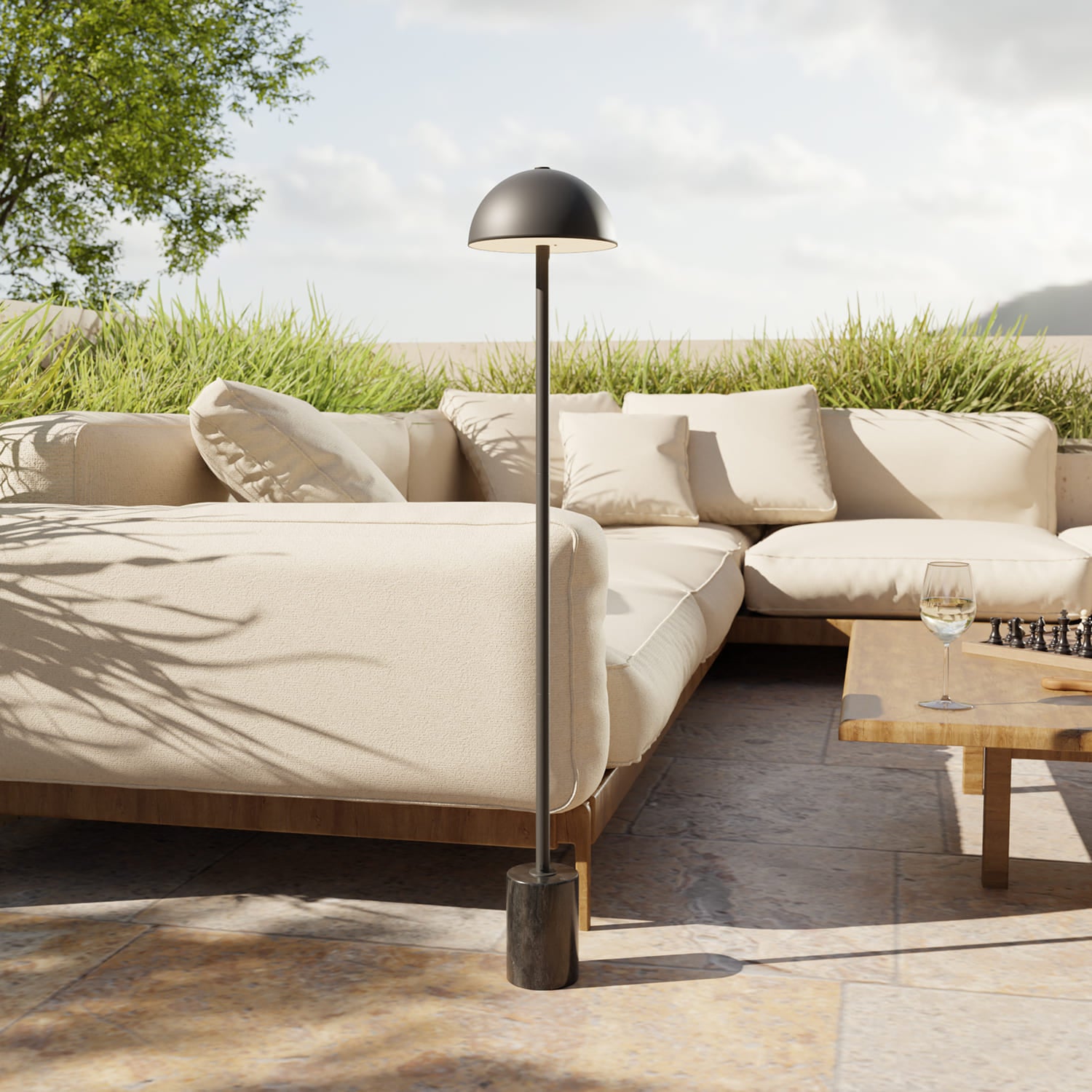
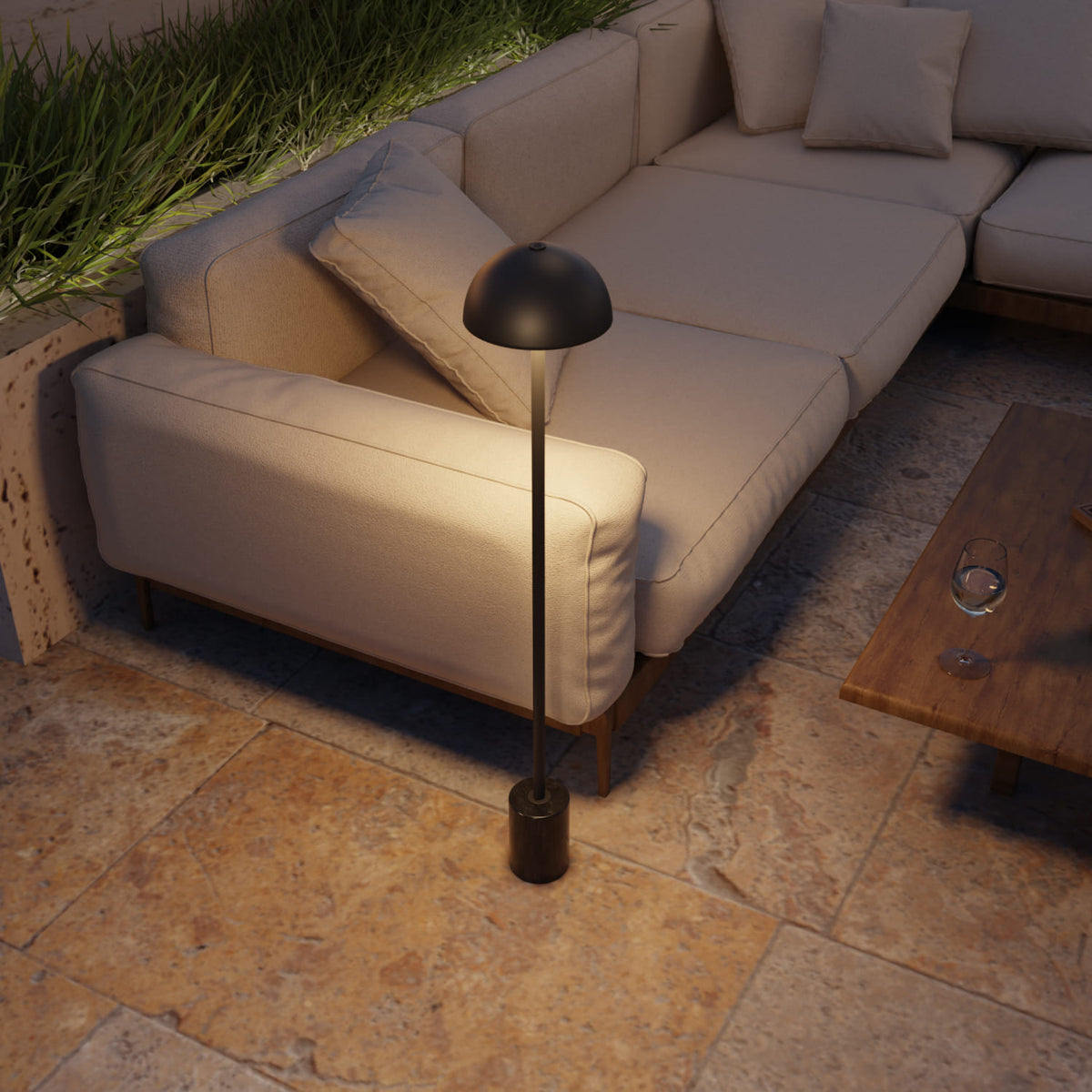

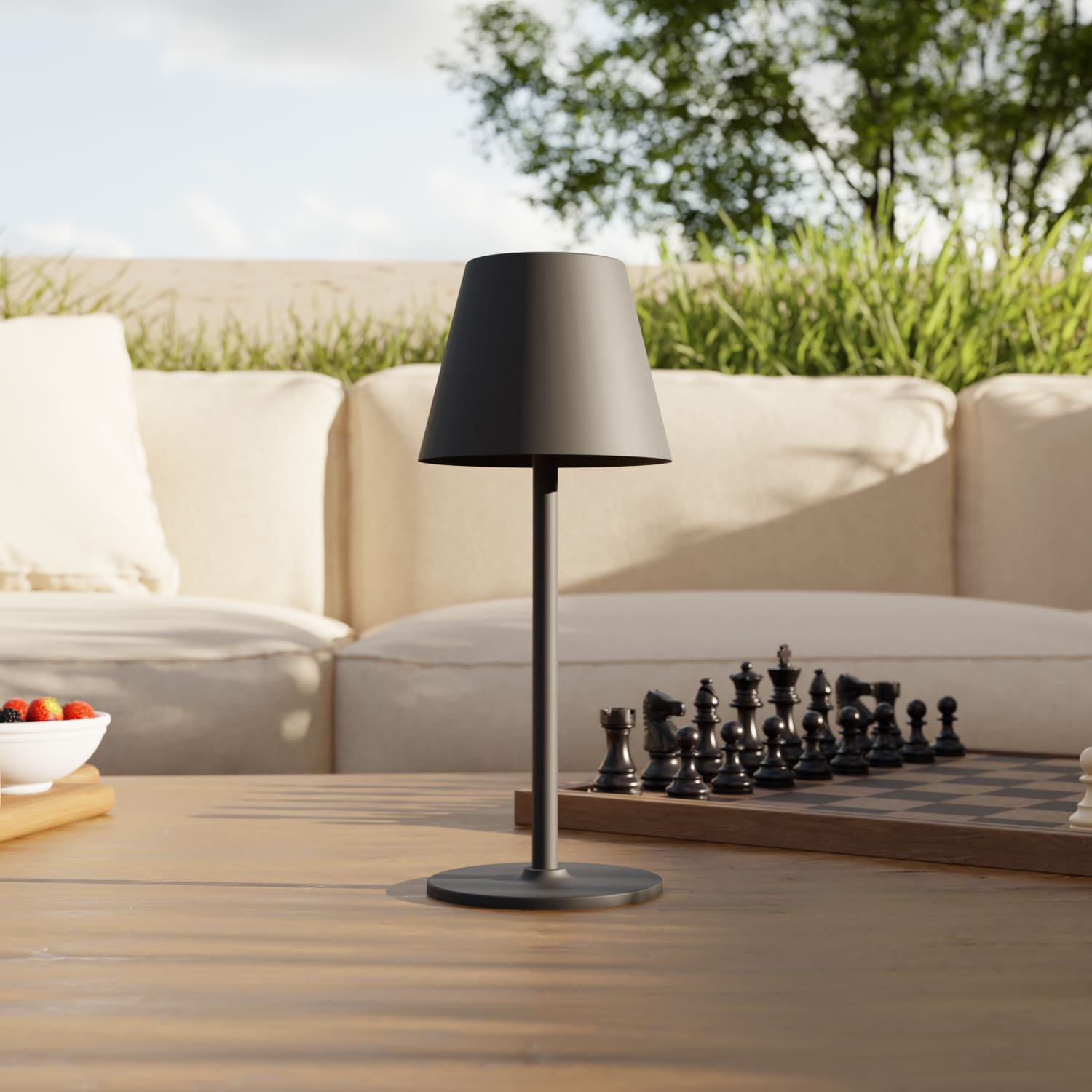
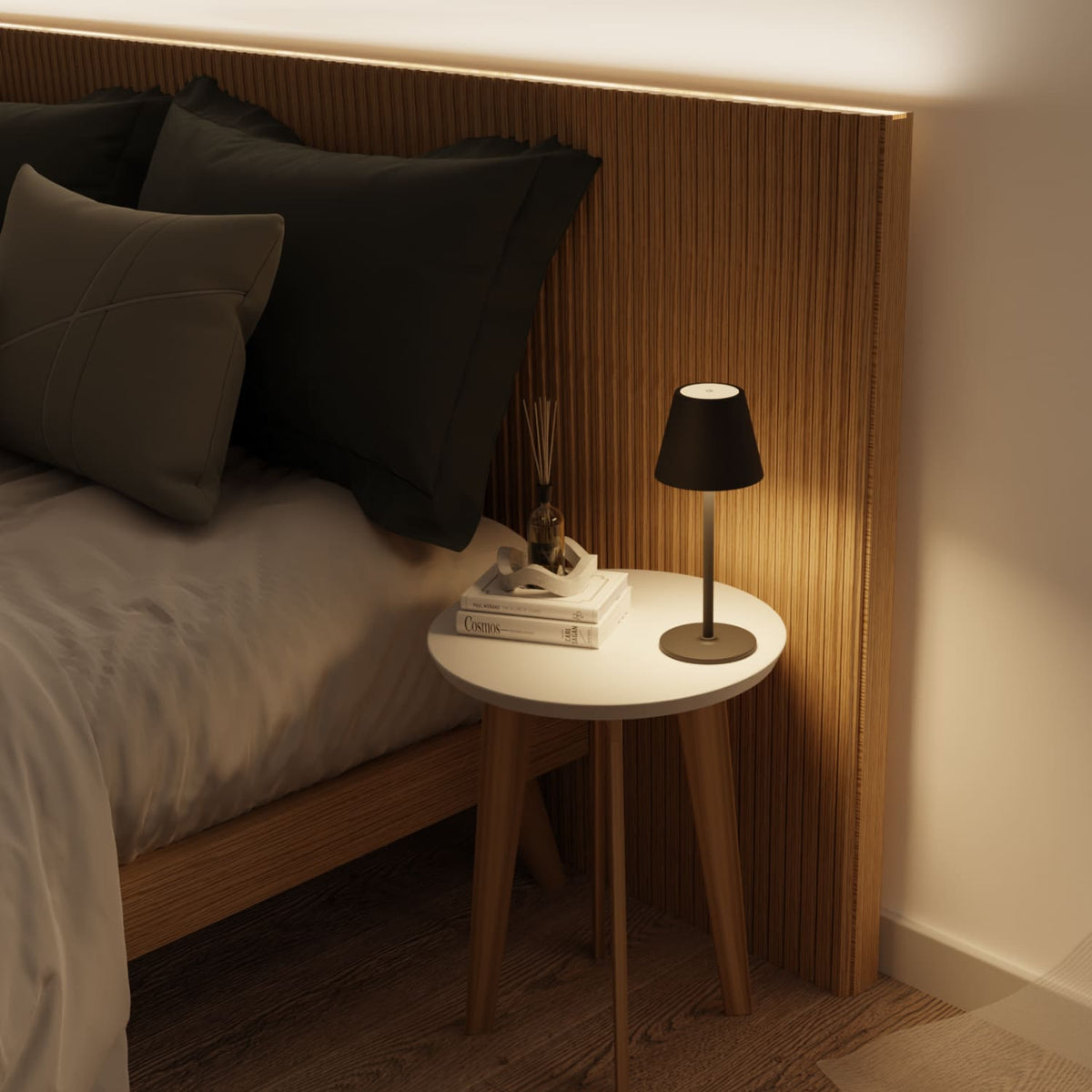
Our Battery-powered lights
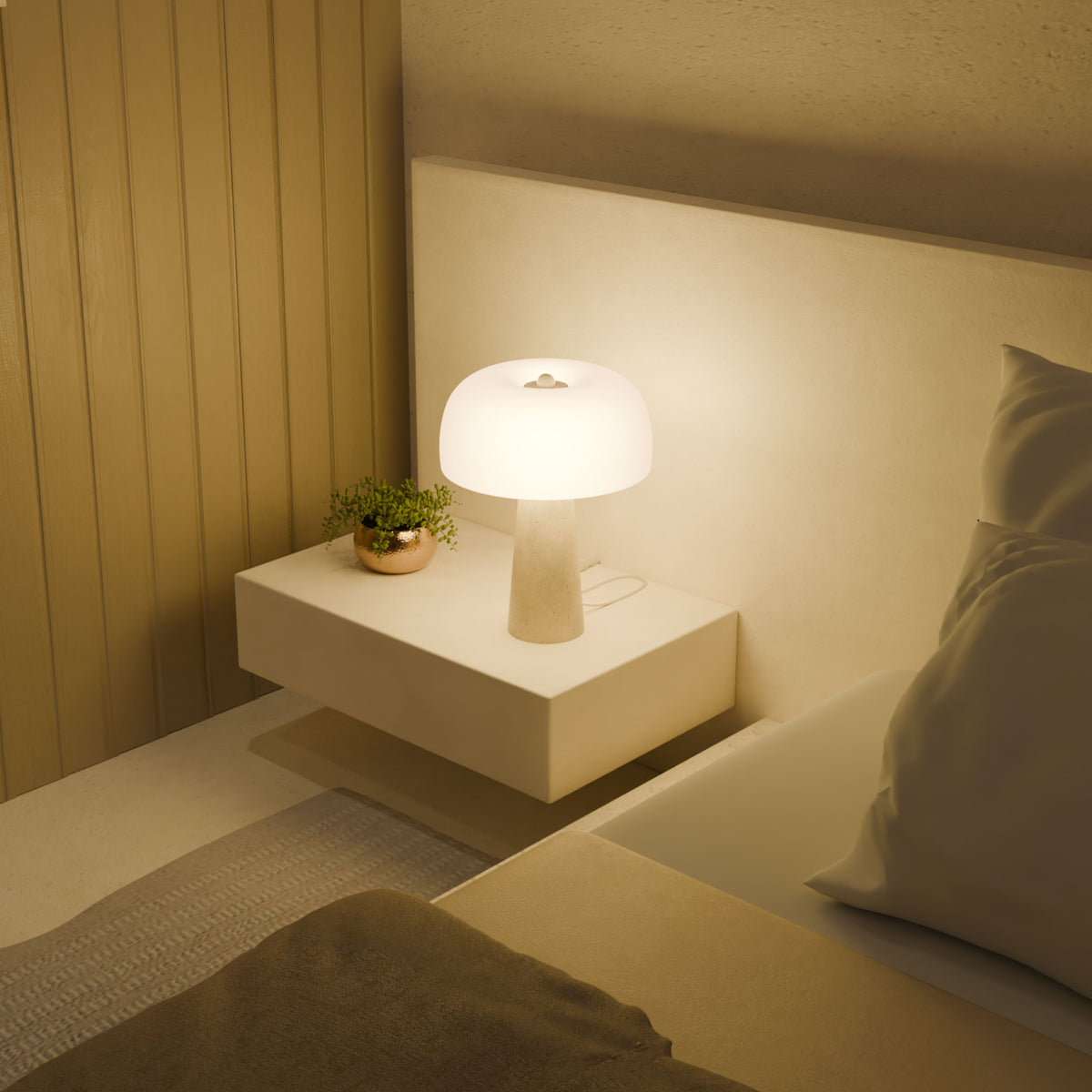
Our Table lamps

#lumiere.design.de


